Do this in the MOBI Admin App
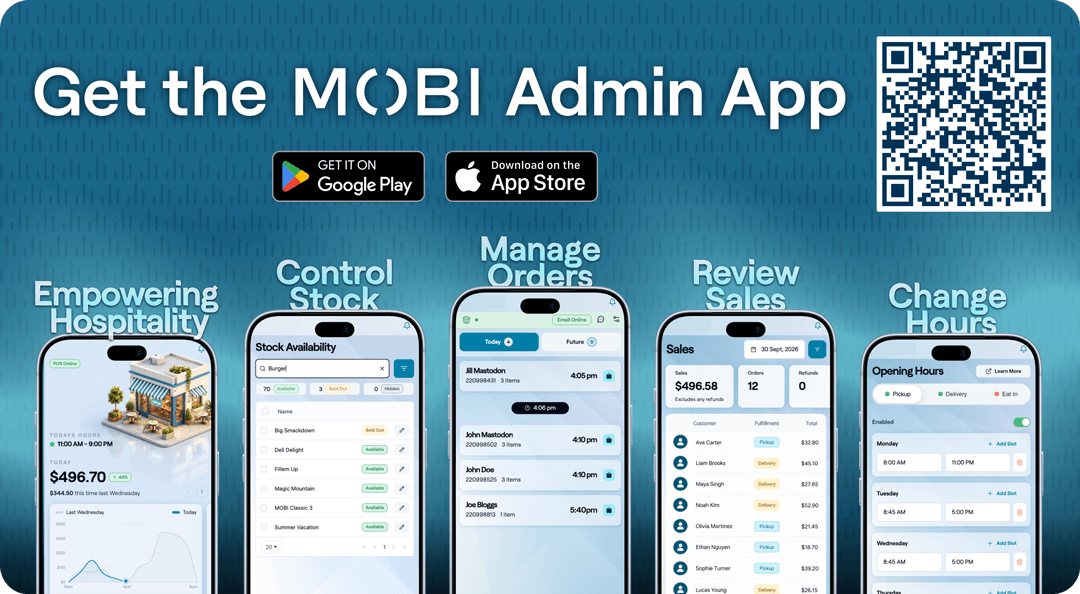
Most venues use the MOBI Admin App on a tablet, where it has the same full feature set as desktop Admin. On a phone, the same screens are simplified for a quick check during service. Screenshots of both are shown below.
The App shows Sales for one venue at a time. The venue name appears at the top, with Home, Stock, Orders, and More alongside it for navigating elsewhere in the App (across the top on a tablet, along the bottom on a phone).
- Open Sales from the MOBI Admin App.
- On a tablet, use the quick date buttons (Today, This week, This month, Yesterday) or the calendar for a custom range. On a phone, tap the date shown at the top to open the calendar; there are no quick-date buttons there. Either way, it defaults to today.
- Swipe through the cards above the orders table to see your Sales, Orders, and Refunds totals, then your channel, fulfilment, and platform breakdown charts.
- Look through the orders table, or select a row to open its full details.
On a tablet:

On a phone:

On a phone, the orders table only shows Customer, Order ID, and Total. Open an order to see its fulfilment, expected time, and payment status. On a tablet (and desktop Admin), the fulfilment, expected time, and payment status show directly in the table, along with quick refund/receipt icons on each row so you don't have to open an order to act on it. The table doesn't show a Location column, since you're already viewing one venue's Sales. Open an order if you want to see its location confirmed.
Note: The platform breakdown chart only covers orders placed directly through MOBI, such as your website, app, or kiosk. It doesn't include orders from third-party delivery platforms.
Expected result: you can see today's (or your selected period's) sales total, order count, and a list of orders, and open any one of them for more detail.
Viewing an order and its details
Selecting a row opens the order's details: the same screen either way, just presented as a side panel on a tablet and a bottom sheet on a phone.
On a tablet:

On a phone:

From the top:
- Customer: who placed the order (or "Guest" if they checked out without an account).
- Location: which store the order was placed at or for.
- Fulfillment: Delivery, Pickup, or Eat-in, shown as a badge.
- Platform: how the order came in (web, app, kiosk, and so on). Not shown for orders placed through a third-party delivery partner or Otto.
- Order Total: the order's total. If it's been refunded, this reflects the net amount after the refund, and a separate Refunded line shows the amount taken off.
- Expected: the date and time the order is expected (or was expected).
- Payment status: Unpaid (pay-in-store/pay-later), Paid, Partially refunded, or Fully refunded.
Under Actions:
- If the order qualifies for a refund and you have permission to issue refunds, a Refund button appears here. It won't appear on unpaid (pay-in-store/pay-later) orders, since there's no captured payment to refund, on an already fully refunded order, or if your account doesn't have refund permission.
- Get order help opens an email to MOBI support (help@mobihq.com) about this specific order. This is always available.
Under Receipt:
- Select View to see the receipt.
- On a tablet or desktop Admin, select Download to save a copy. This isn't available on a phone.
- Select Email to customer to resend the receipt to the customer's email address. This isn't available for orders placed through a third-party delivery partner, unless it's a guest order.
See "Refunding an order" below for the full refund flow.
Narrowing down the list
Select Advanced Filters (shown next to the date on a tablet, or as a filter icon next to the date on a phone) to narrow results by:
- Customers, by name or email
- Order ID
- Table number
- Voucher
- Channel: MOBI, or a connected delivery partner such as Uber Eats, DoorDash, Skip, Delivereasy, or Otto (only the partners connected to your account appear here)
- Fulfillment: Delivery, Pickup, or Eat-in
- Platform: Web, Mobile, iOS, Android, Kiosk, Table, or Skip the queue
- Payment status: All, Paid, or Pay later
- Refund type: All refunds, Full refunds, or Partial refunds
On a tablet:

On a phone:

Within any one of these filters (for example Platform), selecting more than one option shows orders matching any of them. Across different filters (for example Fulfillment and Platform together), results narrow down to orders matching all of them. There's no separate "Apply" step: each change filters the list immediately, live, as you select it. Show [n] orders at the bottom just previews the current result count and closes the panel; your filters already took effect while it was open. On a tablet or desktop Admin, a Clear button resets every Advanced Filter at once. On a phone, clear filters individually using the pills below the filter bar instead.
Active filters appear as pills below the filter bar. Select the x on a pill to remove that filter, or select Clear all to reset everything.
Exporting your sales data
On a tablet or desktop Admin, export your current results as a CSV file (not available on a phone):
- Apply any filters you want the export to reflect.
- Select Export Orders as CSV, Export Product Sales as CSV, or Export Customers as CSV.
- The file is emailed to you. You'll see a confirmation message once it's on its way.
Refunding an order
- Open the order and select Refund.
- Choose Full Refund (shows the full order amount) or Partial Refund. Partial refunds are only available where the payment method supports them.
- For a partial refund, enter the amount. This can't be more than the order's remaining total.
- Choose a Reason for Refund from the list. If you choose Other, add a short description.
- Select Refund (it shows the amount being refunded) to confirm.
Note: Only users with refund permission on your account will see the Refund button. If you don't see it, ask an account admin to grant you access.
Note: If the order included a voucher, loyalty points, or a reward, refunding it won't automatically reverse that activity. If loyalty balances need updating, contact your third-party loyalty provider or help@mobihq.com.
Note: If part of the order was paid using a gift card or credit scheme, that portion isn't refunded through this process. Contact your third-party loyalty provider or help@mobihq.com if those balances need updating.
To confirm a refund went through, reopen the order: its payment status updates to Partially refunded or Fully refunded, and the refunded amount shows against the order total.
On a phone, a few things are simplified
The MOBI Admin App on a tablet has the same full feature set as desktop Admin: nothing here is exclusive to desktop. On a phone, the view is simplified for a quick check during service:
- The orders table only shows Customer, Order ID, and Total. Open an order to see its fulfilment, expected time, and payment status.
- No quick refund/receipt icons on the table rows. Open the order first.
- No quick date-range buttons (Today, This week, This month), only the full calendar picker.
- No Clear button inside Advanced Filters. Clear filters individually using the pills instead.
- No Download option for receipts, only View and Email to customer.
- No CSV exports (Orders, Product Sales, or Customers).
If you need any of these, switch to a tablet or desktop Admin.
Things to know
- You need refund permission on your account to see the Refund button, on any device. Ask an account admin to grant you access if you don't see it.
- In the App, Sales always shows one venue at a time: the venue whose Sales you opened. To check a different venue, switch venues in the App rather than looking for a Locations filter. In desktop Admin at the head office level, a Locations filter is available to switch between stores without leaving the page.
- Refunding an order doesn't automatically reverse loyalty activity (vouchers, points, rewards) or gift card/credit balances. See the notes above for who to contact.
- To verify a refund actually went through, reopen the order and check its payment status and refunded amount.
Need help?
Submit a support request: https://help.mobihq.com/kb-tickets/new